How to Prepare Your Shipment on MyDHL+


 Share
Share
Online Shipping Steps
 Create Shipping Documents (Shipping Form and Invoice)
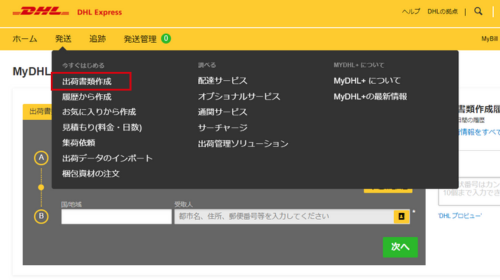
Select “Ship” from the top menu of MyDHL+, then select “Create Shipping Documents” to get started.
About Shipping Forms (Waybills)
A Waybill is the shipping form that has all the information needed to send a shipment. Once you finish filling out your shipping documents on MyDHL+, one will be automatically generated. Your shipment will have a unique 10-digit number - keep this for tracking and support requests.
About Invoices
An invoice is an itemized list issued by the sender (exporter) to the recipient (importer) for international shipments. You’ll need one when sending anything other than documents. The invoice is an important document submitted during customs clearance. It must match the contents of the shipment and Waybill.
 Choose Import or Export
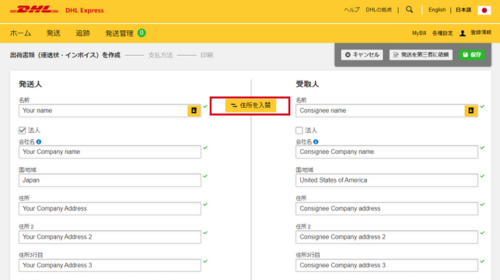
Select the "Swap Address" button in the center of the screen to switch between sender and recipient.
Enter the details of your desired pick up location and shipment destination. We offer helpful hints on how to fill out each item as you create the documents.
 Select Shipment Category
Shipment Information line, please select either “Documents” or “Non-Documents” .
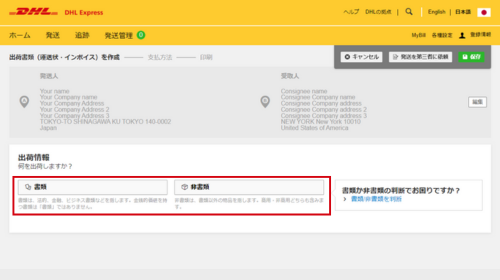
For Documents: Choose the document type from the drop-down menu.
For Non-Documents: Choose the shipment purpose from the drop-down menu.
 Select Shipment Type
Item information must give accurate details on all shipped items for customs officials.Entering everything correctly makes this whole process much smoother. You can easily complete the item information by selecting the “Create Item Details” button. You can also search for an item’s Harmonized System code (HS code).The HS code is an international classification number that customs uses to identify your product.
 Add Other Fees (Optional)
You can also add handling fees, insurance premiums, or other expenses as needed by selecting the “Add Expenses” button.
Optional: Item information can be saved to the item list. After filling in the needed fields, select the “Confirm” button to save.
Optional: Miscellaneous expenses can be added to the invoice (if the recipient is responsible for the costs).
Optional:The “Reference” field at the bottom of the screen lets you add up to 50 characters of extra information needed for shipping. Select the “Add a Reference” button and fill in the needed information. You can add multiple entries, but only the first line will be printed on the shipping label
Saving and Initial Settings: To make your next shipment even easier, you can register addresses via “Settings” on the top menu.
 Selecting Cargo Insurance
We handle every shipment with care, but we recommend insurance for added protection. Enter the declared value of your items when using this service.
 Create an Invoice (Non-Document Shipment Only)
For non-document shipments, you’ll need an invoice for customs clearance. Please make sure the information is accurate for the shipment and Waybill.
You can create an invoice using any of the options below:
Create Using DHL’s Format:
You’ll need an invoice number when exporting from Japan. Enter it in your preferred format (ex: INV_DDMMYY).
Create Using Your Own Format:
Enter an invoice number. If anyone other than the sender and recipient is involved, select the “Add additional party” button to add their information. You can add existing information from your contacts or fill it in manually. You can also add multiple parties for a single shipment.
For EU shipments: Enter the appropriate Tax ID (such as your IOSS number for prepaid VAT) in the Shipment Tax ID field.
 Select Packing Materials
A carefully packaged shipment stays safe in transit. You can pack your shipment with your own materials or order some from DHL.
- For Documents: Select “Envelope” or “Flyer”.
- For Non-Documents: Select “My Own Package” when using a box you have prepared yourself.
- Enter the number of packages and their sizes and weights.
- If you have packages of different sizes and weights, select the “Add Packing Type” button and fill them in.
 Select Payment Method
Shipping charges default to your registered DHL account. Customs duties and taxes default to "Payable by Recipient."
You can also choose to have the shipper or a third party pay customs duties and taxes instead of the recipient. If customs duties, taxes, or other regulatory fees need to be paid locally, an additional charge will be applied based on either a flat rate or a percentage of the fee.
When the recipient or a 3rd party pays the shipping charges, select “Other Account Number” and enter the shipper's DHL account number. The shipper's DHL account number will be the one you registered.
 Select Shipping Date
Select the shipping date (yellow tab) to display the estimated delivery date at the bottom of the screen. Then select your desired service.
*Expected delivery date may change depending on how long customs clearance takes.
*There’s an extra fee for the time-specific service.
The displayed shipping costs are based on either the actual weight or volumetric weight of each consigned package, whichever is heavier.
- By selecting the “Details” button displayed under the cost, you can see a breakdown of fees. Costs will not be displayed if you selected a different DHL account for payment.
- Hit “Select” and move on to the next page.
 Select Optional Services
We offer a range of optional services to meet your needs. See the link below to learn more.
*Optional services cost extra, and availability depends on where you’re shipping to.
https://mydhl.express.dhl/jp/en/ship/optional-services.html
 Request a Shipment
DHL drivers can pick up your shipment, or you can bring it to the nearest DHL Express service point.
*Our drivers follow scheduled routes, so we'll confirm your pickup time when you book.
 Create a Shipping Label (Optional)
You'll see a prompt asking if you want to create an e-return shipping form. Select "Yes" to create one, then follow the on-screen instructions.
 Review the Shipping Cost Summary
The shipping cost summary shows an itemized estimate of your shipment charges. Only charges for shipments billed to the sender account are shown in the cost. If you need to modify the details, select “Edit.” After reviewing the details, select “Agree and Continue” to proceed. If you need to modify the details after confirmation, please create a new Waybill.
If you selected the Digital Customs Invoice Service, select the “Apply” button to upload your file.