

Table of contents
Chapter 1 | General Guidelines for Shipping Laptops Internationally |
Chapter 2 | Reasons Why Your Laptop Shipment Might Be Rejected |
Chapter 3 | Laptops We Can’t Ship (And Why) |
Chapter 4 | Lithium-ion Battery Limits: What You Need to Know |
Chapter 5 | How to Pack Your Laptop/s for Shipping |
Chapter 6 | Exporting Laptops Out of [Country]: What You Need to Know |
Chapter 7 | DHL Express Laptop Shipping Checklist |
An easy-to-follow guide for sending your laptop overseas
Welcome to Your Laptop Shipping Guide
Shipping your laptop internationally can feel a bit daunting, but with DHL Express, it doesn't have to be. This guide is here to make the process clear and simple, so you know exactly what you need to do to send your device overseas.
Inside, we'll answer your most important questions:
Can DHL Express ship my laptop to another country?
Are there any specific restrictions or rules I need to know?
What about shipping laptops with batteries — how does that work?
Does DHL Express consider laptops hazardous for shipping?
General Guidelines for Shipping Laptops Internationally
Preparing to send a laptop overseas? Pay attention to these general guidelines for a smooth shipping process.
Number of Laptops You Can Ship
In compliance with international shipping regulations, there are limits on the number of laptops you can send.
Per box (package): You can pack a maximum of 2 laptops in each individual box.
Per order (shipment): The total number of laptops you can send in one shipping order (even if it's in multiple boxes) is 4 laptops.
Tip: Need to send more than four laptops? You’ll need to create a separate shipping order for the additional devices.
About Your Laptop Batteries
The lithium-ion battery MUST be installed inside the laptop when you ship it.
Because of their chemical makeup, lithium-ion batteries are subject to strict air cargo safety regulations.
Reasons Why Your Laptop Shipment Might Be Rejected
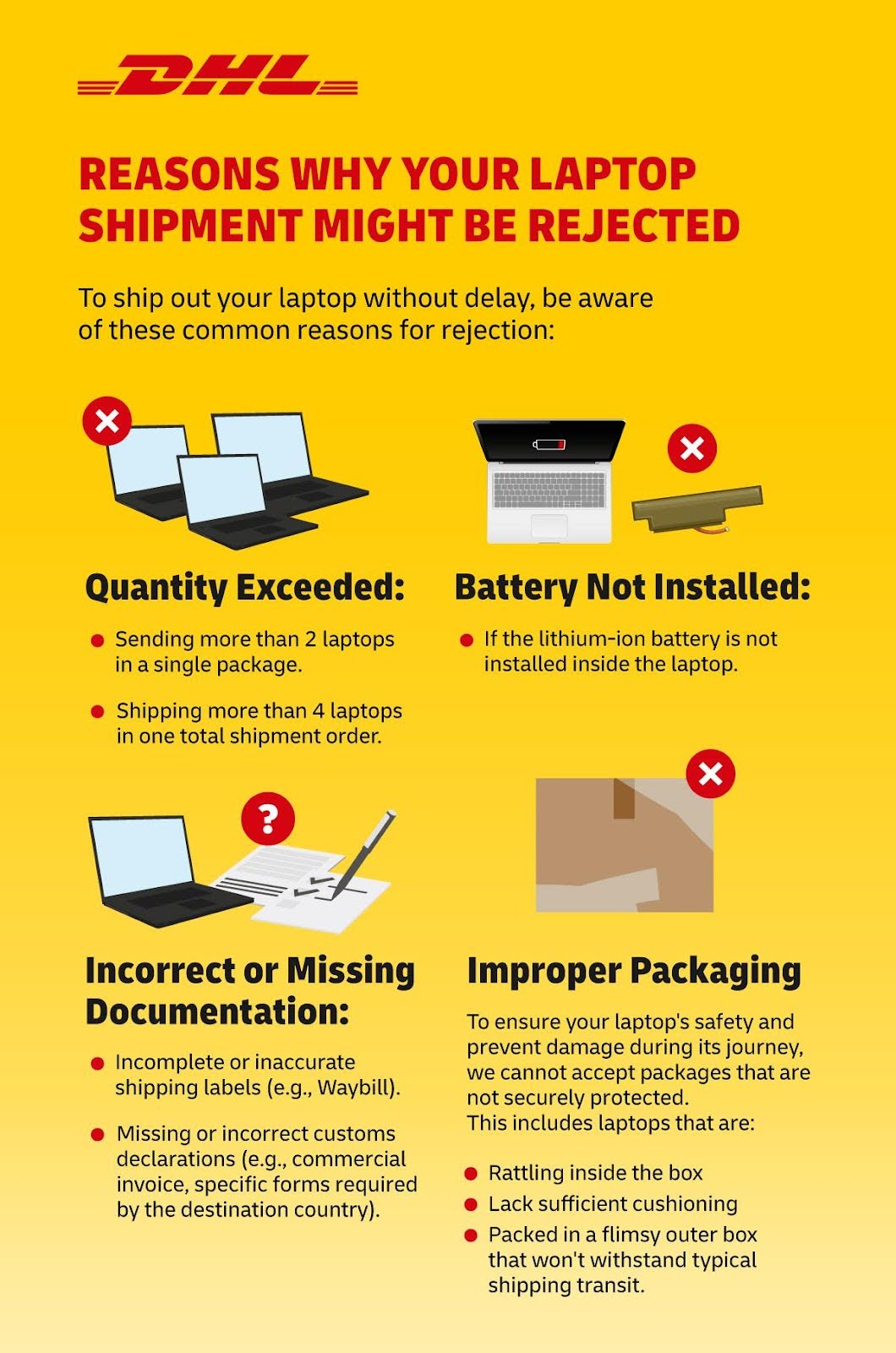
To ship out your laptop without delay, be aware of these common reasons for rejection:
Quantity Exceeded:
Sending more than 2 laptops in a single package.
Shipping more than 4 laptops in one total shipment order.
Battery Not Installed:
If the lithium-ion battery is not installed inside the laptop.
Incorrect or Missing Documentation:
Incomplete or inaccurate shipping labels (e.g., Waybill).
Missing or incorrect customs declarations (e.g., commercial invoice, specific forms required by the destination country).
Failure to declare the presence of a lithium-ion battery where required (even if installed).
Improper Packaging
To ensure your laptop's safety and prevent damage during its journey, we cannot accept packages that are not securely protected. This includes laptops that are:
Rattling inside the box
Lack sufficient cushioning
Packed in a flimsy outer box that won't withstand typical shipping transit.
Laptops We Can't Ship (And Why)
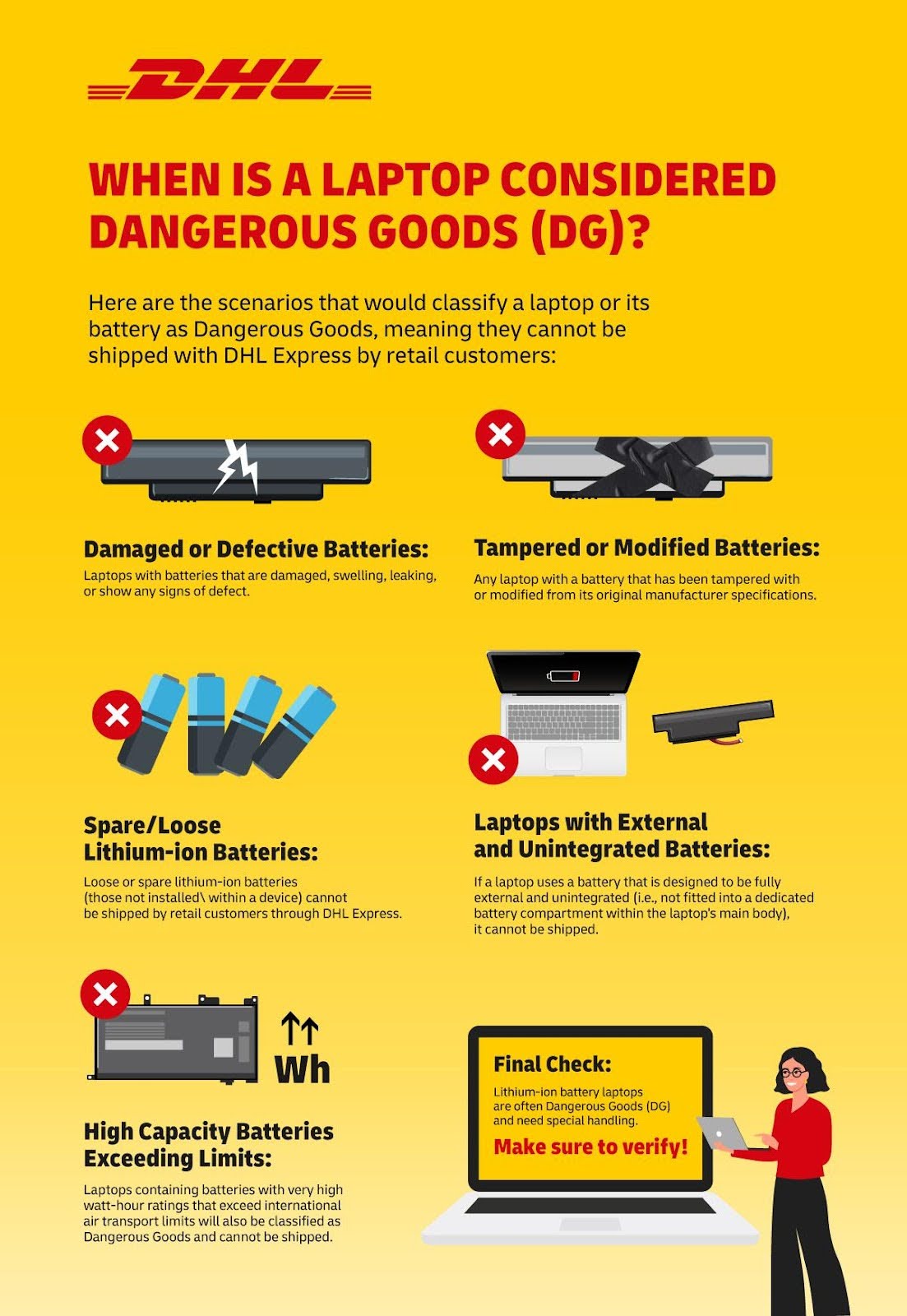
Most standard laptops with their batteries installed within the device are perfectly fine for international shipping with DHL Express. However, certain conditions can classify a laptop (or its battery components) as "Dangerous Goods" (DG). This classification simply means they require special handling and procedures due to potential safety risks during air transport.
Here are the scenarios that would classify a laptop or its battery as Dangerous Goods, meaning they cannot be shipped with DHL Express by retail customers:
Damaged or Defective Batteries: Laptops with batteries that are damaged, swelling, leaking, or show any signs of defect.
Tampered or Modified Batteries: Any laptop with a battery that has been tampered with or modified from its original manufacturer specifications.
Spare/Loose Lithium-ion Batteries: Loose or spare lithium-ion batteries (those not installed within a device) cannot be shipped by retail customers through DHL Express.
Laptops with External and Unintegrated Batteries: If a laptop uses a battery that is designed to be fully external and unintegrated (i.e., not fitted into a dedicated battery compartment within the laptop's main body), it cannot be shipped.
High Capacity Batteries Exceeding Limits: Laptops containing batteries with very high watt-hour ratings that exceed international air transport limits will also be classified as Dangerous Goods and cannot be shipped.
Lithium-ion Battery Limits: What You Need to Know
To ensure the safety of all air cargo, international regulations place limits on the power (capacity) of lithium-ion batteries that can be shipped. For your laptop, this is measured in Watt-hours (Wh).
The combined total Watt-hours (Wh) of all lithium-ion batteries in a single package must not exceed 100 Wh.
For one laptop: Your laptop's battery must be 100 Wh or less. Most consumer laptops easily fall within this limit.
For two laptops in one package: The sum of the Watt-hours from both laptops' batteries must not exceed 100 Wh. This typically means each laptop's battery would need to be 50 Wh or less.
How to Find Your Laptop Battery's Watt-Hour (Wh) Rating
Here’s how to find your laptop battery's Watt-hour (Wh) rating to make sure it’s under 100 Wh.
For Windows Laptops
Step 1: Open Command Prompt
Search for "Command Prompt" in your Windows search bar.
Right-click on "Command Prompt" in the search results and select "Run as administrator."
Confirm if prompted.
Step 2: Run the Command
In the Command Prompt window, type (or copy and paste) the following command exactly as it appears: powercfg/batteryreport
Press Enter.
Step 3: Access the Report
The command will generate a file path, usually looking something like: “C:\Users\[Your Username]\battery-report.html” or “C:/Windows/System32/battery-report.html”
Copy this entire file path.
Open your web browser (like Chrome, Edge, Firefox) and paste the copied file path into the address bar. Press Enter.
Step 4: Find Your Laptop Model
Find the Product Name of your laptop under “SYSTEM PRODUCT NAME”
Step 5: Search Online for Specifications
Open a search engine (like Google) and search for your laptop's full product name along with "battery specifications" (e.g. "HP EliteBook 840 G8 Notebook PC battery specifications").
Refer to the technical specifications on the manufacturer's official product page to find the Watt-hour (Wh) rating.
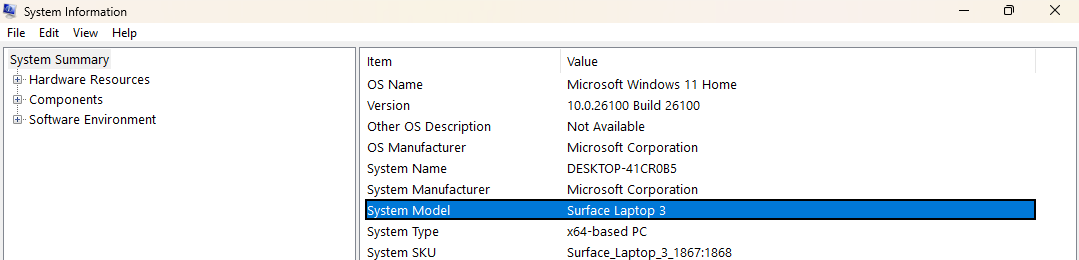
For Windows LaptopsStep 1: Open System Information
Step 2: Find Your Laptop Model
Step 3: Search Online for Specifications.
|
For Macbooks
Step 1: Identify Your MacBook Model.
Click the Apple icon on the top-left corner of your screen.
Select "About This Mac."
Note your MacBook model and its year (e.g., "MacBook Air (M1, 2020)" or "MacBook Pro (16-inch, 2019)").
Step 2: Find Specs on Apple's Website.
Go to Apple's official support website (support.apple.com).
In the search bar on Apple's site, type your specific MacBook model (e.g., "MacBook Air M1 2020 specifications").
Navigate to the technical specifications page for your model. The battery's Watt-hour (Wh) rating will be listed there.
How to Pack Your Laptop/s for Shipping
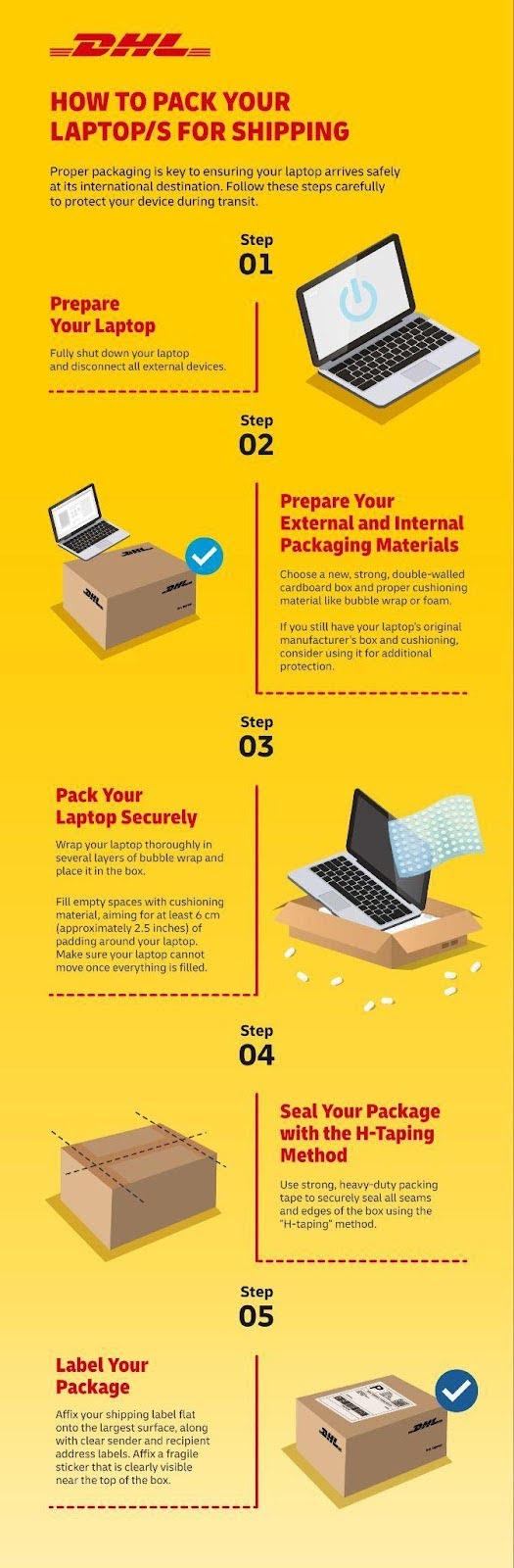
Proper packaging is key to ensuring your laptop arrives safely at its international destination. Follow these steps carefully to protect your device during transit.
Step 1: Prepare Your Laptop
Fully shut down your laptop and disconnect all external devices.
Step 2: Prepare Your External and Internal Packaging Materials
Choose a new, strong, double-walled cardboard box and proper cushioning material like bubble wrap or foam.
If you still have your laptop's original manufacturer's box and cushioning, consider using it for additional protection.
Step 3: Pack Your Laptop Securely
Wrap your laptop thoroughly in several layers of bubble wrap and place it in the box.
Fill empty spaces with cushioning material, aiming for at least 6 cm (approximately 2.5 inches) of padding around your laptop. Make sure your laptop cannot move once everything is filled.
Step 4: Seal Your Package with the H-Taping Method
Use strong, heavy-duty packing tape to securely seal all seams and edges of the box using the "H-taping" method.
Step 5: Label Your Package
Affix your shipping label flat onto the largest surface, along with clear sender and recipient address labels. Affix a fragile sticker that is clearly visible near the top of the box.
DHL Express Laptop Shipping Checklist
Ready to send your laptop? Use this handy checklist to make sure you’ve got everything sorted.
Is the laptop shut down?
Is the laptop battery in good condition? (not swollen, leaking or damaged)
Is the laptop battery installed?
Are there no more than two laptops in a package?
Is the laptop wrapped in protective cushioning?
Is the laptop packed in a strong, rigid outer box?
Is any empty space in the box filled with packing material?
Is the box sealed completely with strong packing tape?
Is the Air Waybil (AWB) correctly attached and clearly visible?
Are the sender and recipient addresses clearly and correctly labeled?
Get to the nearest Service Point for a great in-store experience and direct service consultancy
Speak to our sales team for urgent shipping need
Online Shipment Booking


 Share
Share
Similar Stories