

Understanding the Harmonized System (HS) Code for your goods is essential in global trade. To make this process easier, DHL Express Thailand offers a convenient tool on its website that helps you quickly identify HS Codes for products from different countries.
Follow these four steps to find your HS Code instantly:
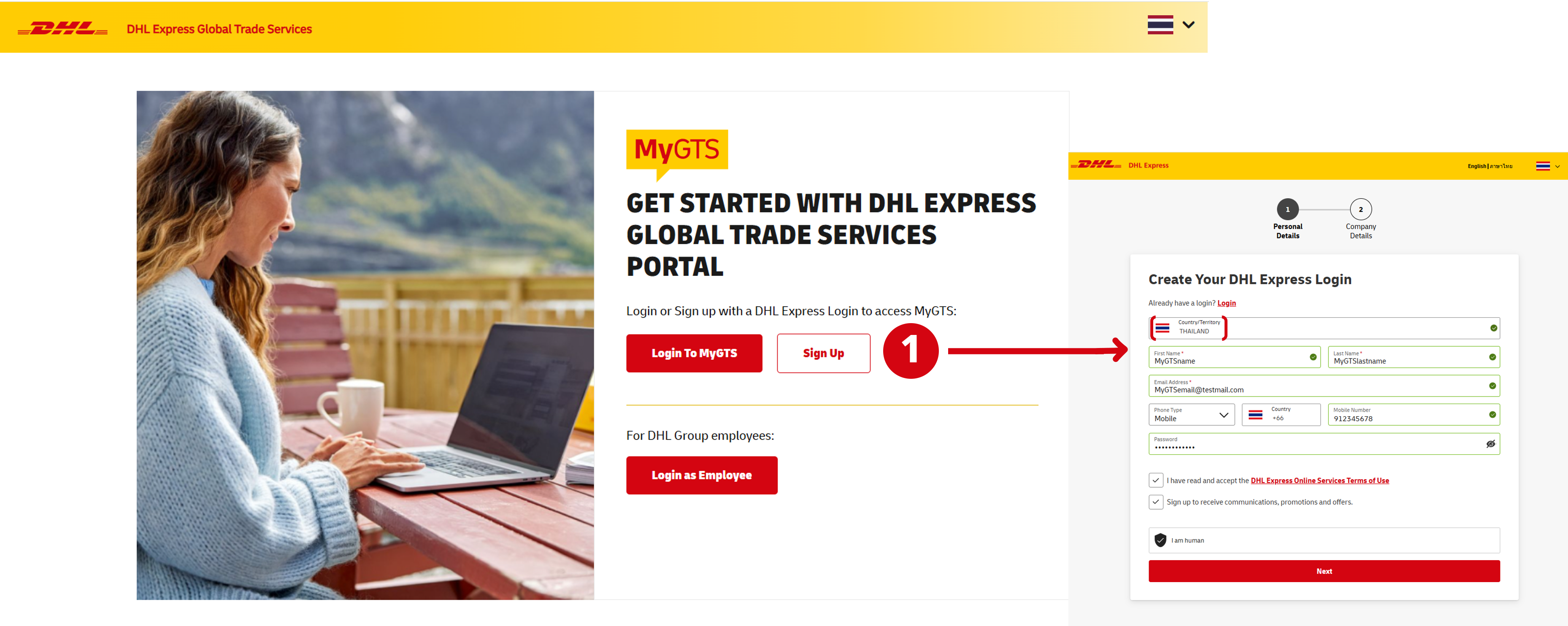
Step 1: Visit the MyGTS website
Start by going to the DHL Express Global Trade Services (MyGTS) website. The site features an easy-to-use interface.
To access the tool, you need a MyGTS account. If you already have one, click ‘Login to MyGTS’.
If not, click ‘Sign Up’, complete the form, and make sure to select 'Thailand' as your country.
Then click ‘Continue’ and verify your account using the code sent to your email.
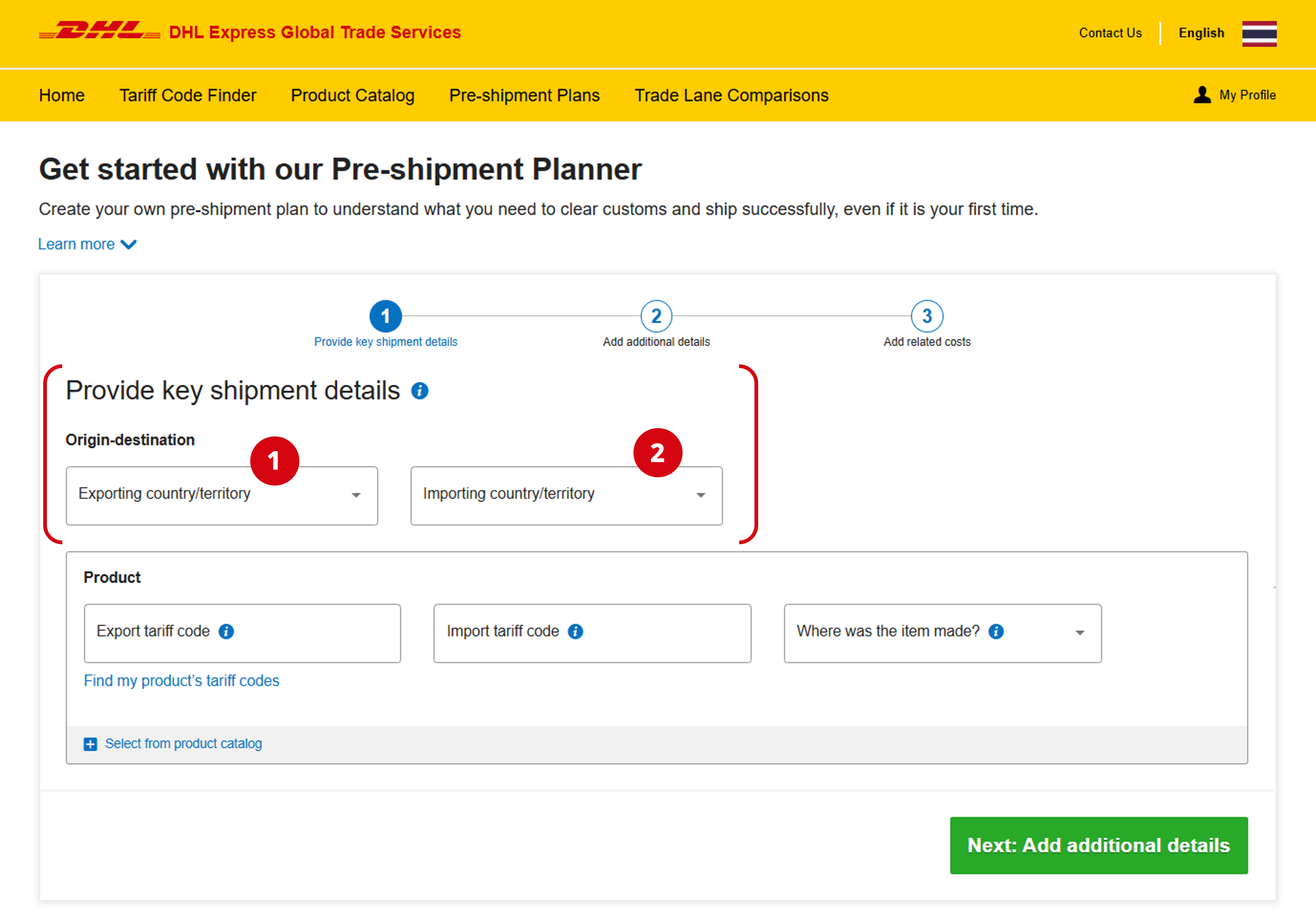
Step 2: Specify Exporting and Importing Countries
Choose the ‘Exporting country’ and ‘Importing country’ for your goods.
Step 3: Begin the Search
MyGTS offers more than HS Code lookup. If you want to check customs documents or calculate landed costs and duties, simply enter the HS Code to get instant details.
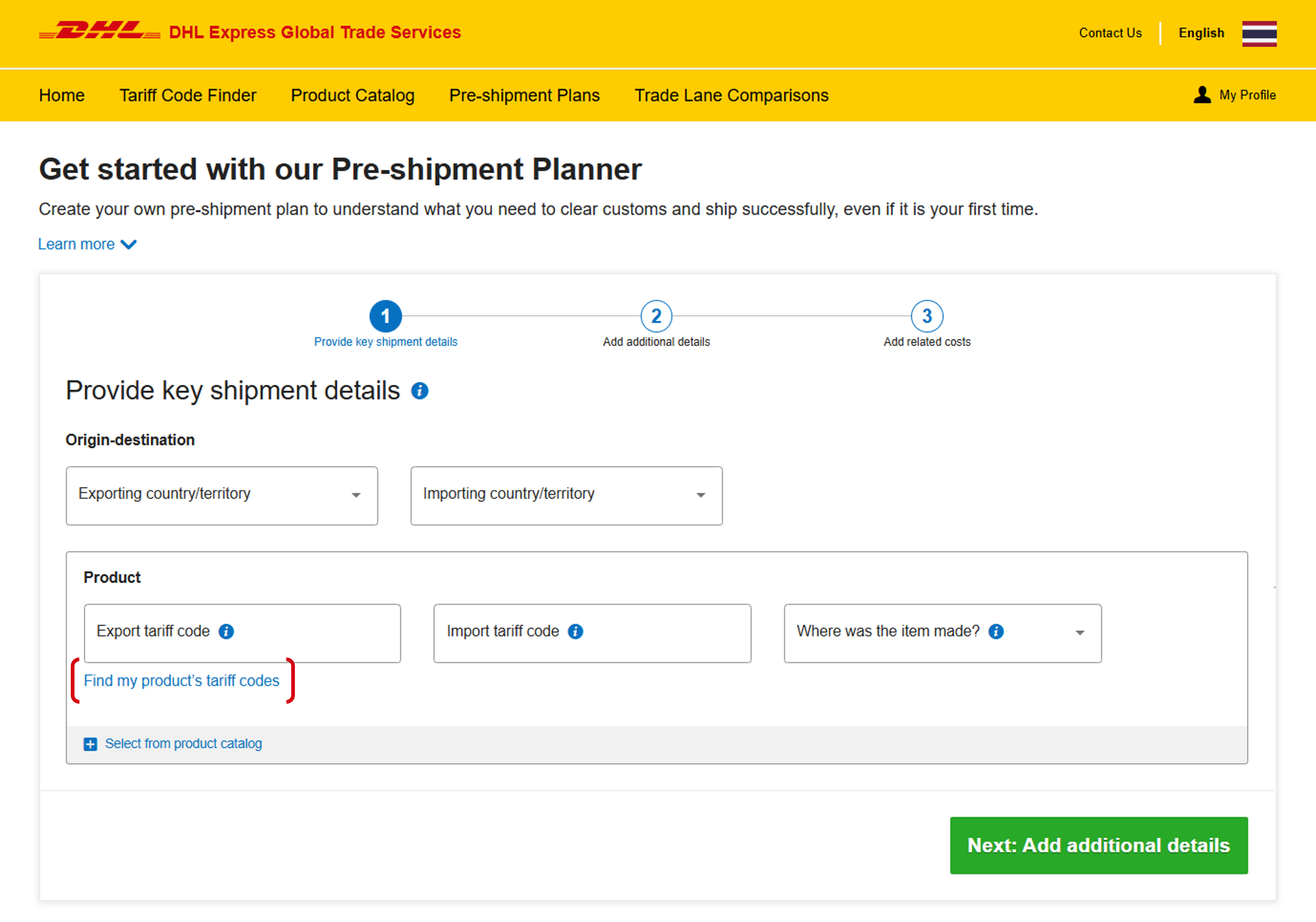
If you need to find your product’s HS Code, click "Find My Product's Tariff Codes".
Step 4: Look up The Product's HS Codes
There are two ways to search for complete HS codes.
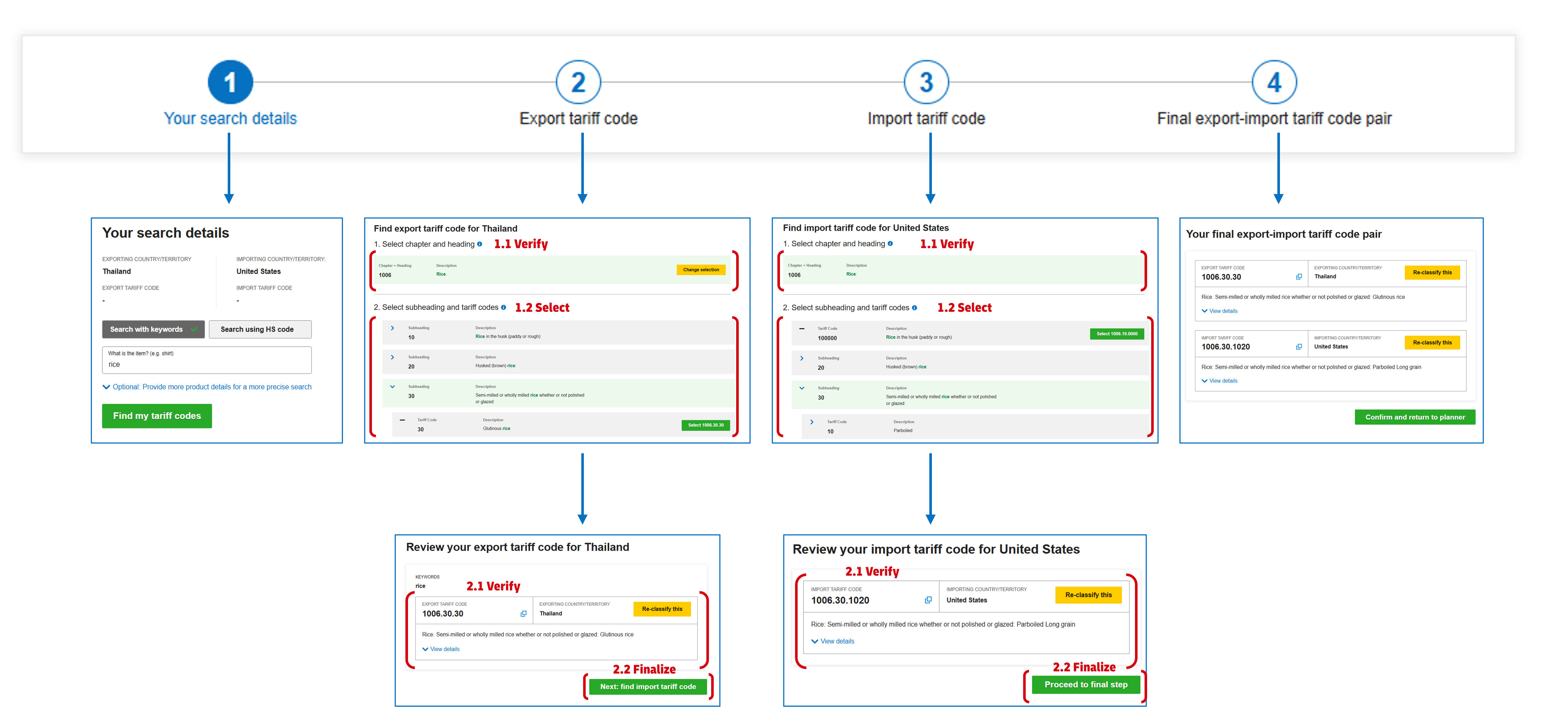
Search by Description
Follow these steps to search HS codes for both the exporting and importing countries:
- Enter accurate keywords describing your shipment and click 'Find My Tariff Codes.'
Review the results and select the export HS Code that best matches your product.
Do the same for the import HS Code that corresponds to your shipment.
If the results don’t match, go back and adjust your keywords.
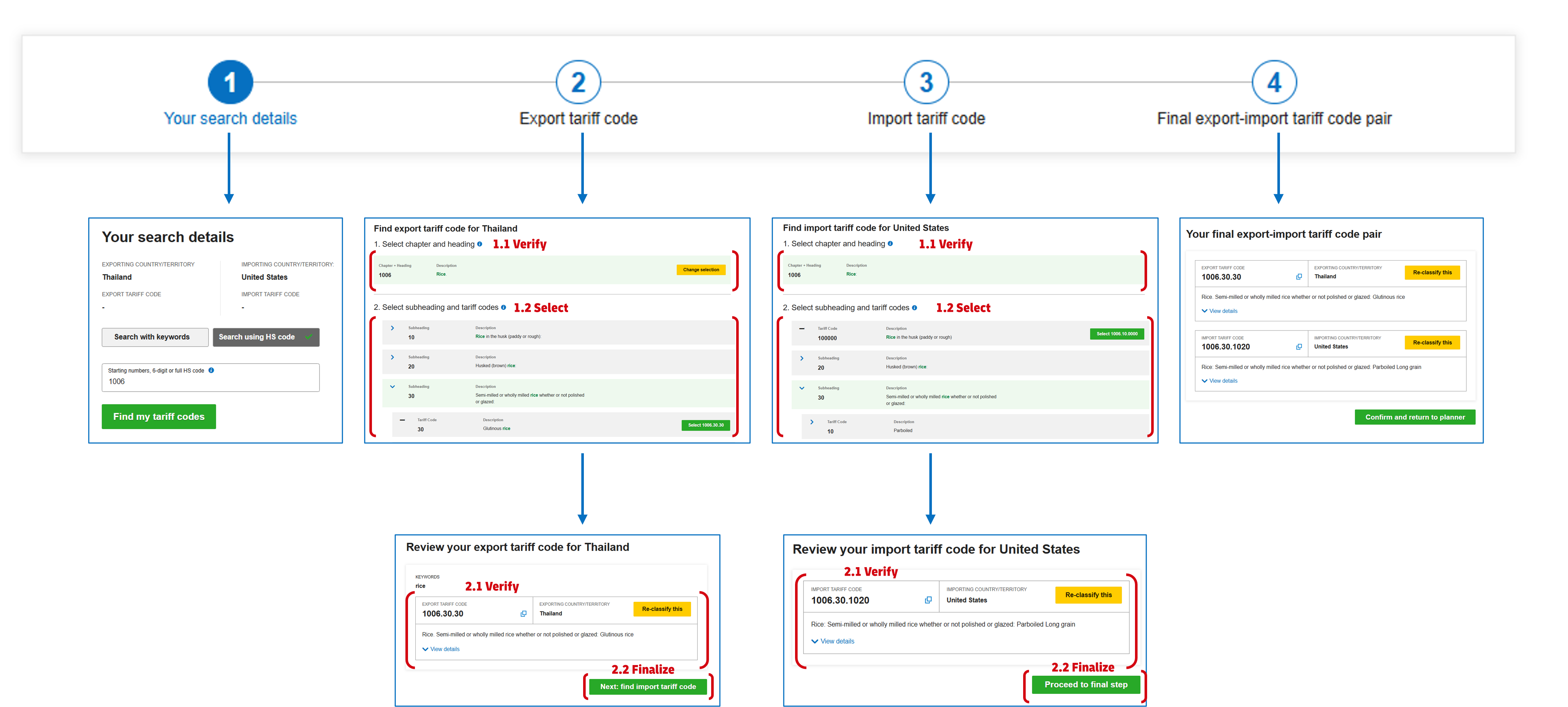
Search By HS Code
The first six digits of an HS Code are globally standardized. If you know these digits, you can find the full HS Code for both countries:
Follow these steps.
Enter the first six digits of the HS Code.
Check the export tariff results and select the most suitable one.
Repeat for the import tariff.
If the results are incorrect, return to the previous step and try different keywords.
The HS Codes of Your Shipments
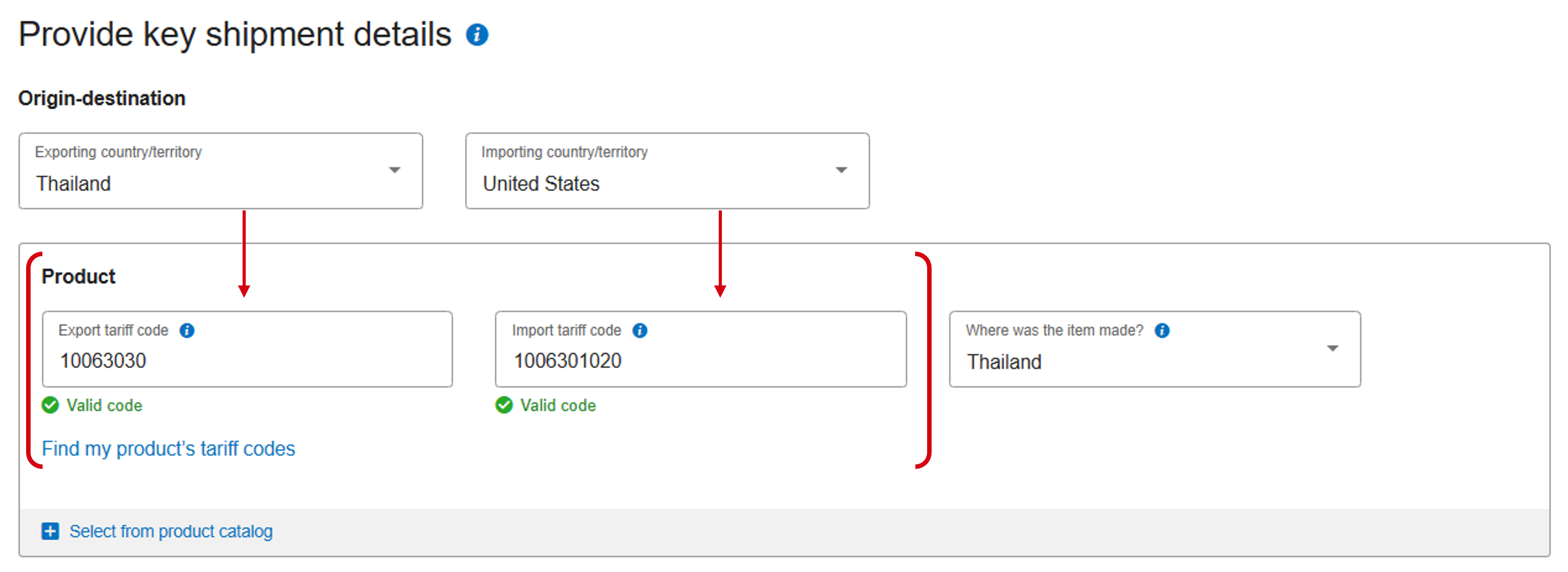
After clicking 'Confirm and Return to Planner,' you’ll return to the main interface where you can view both export tariff codes (origin country) and import tariff codes (destination country).
Video Introduction to MyGTS functions in 2 Minutes


 Share
Share
Similar Stories