A Corp can be used simply for allowing multiple users to share and use the same information (account numbers, addresses, shipment visibility etc). Everyone can see and do the same as each other. See the Changing to a Multi User guide.
There are also many options you can configure for your Corp if you wish.
Click Admin Settings in the grey bar at the top of the page to access the settings.
Shipment Settings and Defaults
Select the group and or user you wish to configure settings for and click Select
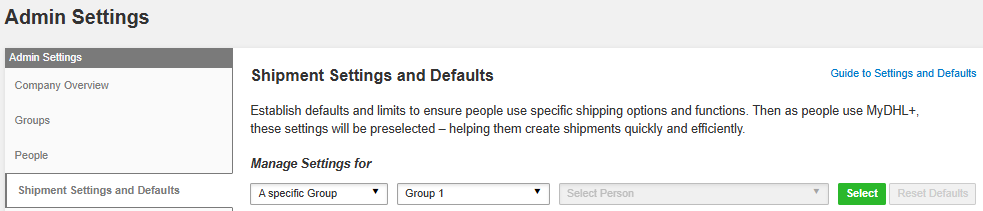
There are several menus displayed within Shipment Settings and Defaults. Below are the options that are often used.
Default Shipment Attributes
Configure what you need to for Incoterms, Purpose of Shipment Required, Shipment Type.
Ensure you click Save in the bottom right corner.
The settings will be applied to the group or person you selected in Manage Settings For.
Users can overwrite these defaults when shipping.
Optional Services
This is where you can make a service default or required.
Default means the service will be selected automatically but the user can deselect it during shipping.
Required means the service is selected but cannot be deselected when shipping.
Hover the mouse over the Optional Service and click Edit.
Click Save once you have ticked what you need.
Scroll to the bottom of the page and click Save.
The settings will be applied to the group or person you selected in Manage Settings For.
Users can overwrite these defaults when shipping.
Quotes and Shipment Charges
Here, you can select if users are able to get quotes and see surcharges and have the information displayed when they are creating a shipment.
Delivery Options
If you wish to set a delivery option as default, you can do it here. This might be useful if you want all your shipments to be delivered by mid-day for example.
Or if there are any delivery options you never wish to use, you could remove the tick from Allowed so they are never offered when shipping.
Hover the mouse over the product, click Edit, tick the Default box and click Save
Ensure you click the Save button in the bottom right of the page.
Account Numbers
If you wish, you can configure which account number(s) each Group or User can access.
Select the Group or Person you wish to configure for at the top in Manage Settings For
In the Account number list, click Deactivate for the accounts you do not want the group / user to see / use.


 Share
Share
Similar Stories