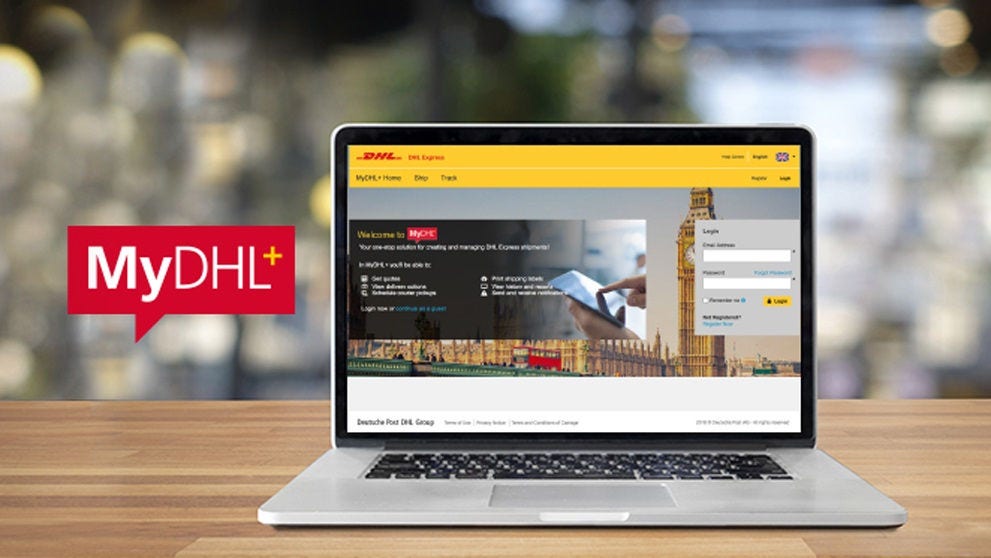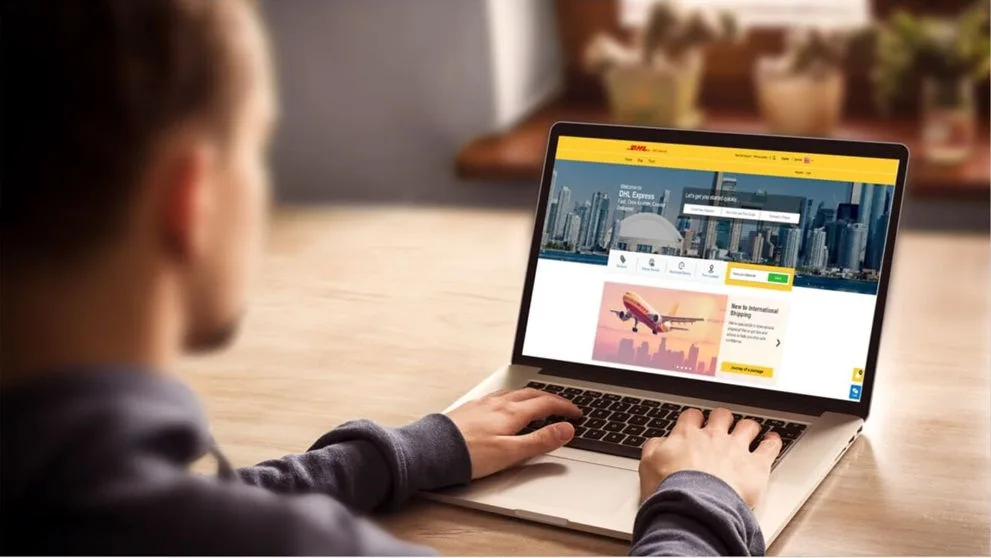

This process creates a shipment label for the Globalmail sack(s) so it can be shipped to the Globalmail terminal. MyDHL+ is not able to print labels for the items within the sack(s).
MyDHL+ should only be used to prepare DHL Globalmail shipments if you are sending mail items containing documents only.
If the mail items you are sending contain goods/non-documents, you will need to use a Deutsche Post shipping solution to create your item labels and create their Globalmail Waybills. This is because Electronic Advance Data (EAD) must be captured and submitted for all mail items containing goods for security and customs purposes. Shipments containing goods without the required EAD cannot be forwarded to the destination country and will be returned to the sender. For further information about the Deutsche Post shipping solutions available, please contact your DHL Express Account Manager.
Your MyDHL+ login has to be configured so it can use Globalmail. If this has not been done already, please e-mail the CFIT Helpdesk cfituk@dhl.com giving your MyDHL+ login e-mail address and your DHL Express account number.
Ship > Create Shipment
Click the yellow Address Book icon in the ‘To’ Name field.
When the address book opens, click the Globalmail tab
Next, select the Mail Terminal in the United Kingdom.
The address will be greyed out.
Click Next to go to the next section.
Shipment Details
The description will be pre-populated and greyed out.
Enter a shipment reference if you wish
Click Next to go to the next section.
Select Packaging
Enter the package details
Click Next to go to the next section.
How would you like to pay?
Select the account number you wish to use.
Click Next to go to the next section.
I’m sending my shipment on
Select the shipment date.
Select a Product
The Globalmail product will be pre-selected with no other products available for selection
Click Select
Shipment Cost Summary
Check the details are correct.
If anything needs to be changed, scroll up and click the Edit button next to the appropriate section.
Click Accept and Continue
Print and You’re Done!
The shipping documents will be displayed.
The tracking number (also known as Shipment ID or Waybill number) will be displayed
Select which you would like to print and select the Print Waybill button. If you wish to print other documents, click Print Other Documents
The documents will be displayed ready for you to print
Once printed, click Complete Shipment
Shipment Confirmation
There are several options on this page
If you wish to create another shipment, click Create Another Shipment or Ship > Create Shipment
To view the shipment(s), click Manage Shipments


 Share
Share
Similar Stories