Using the Switch functionality means you can create a shipment from someone shipping for you to yourself or another destination. The shipment labels will be e-mailed to the shipper and you can either propose a pickup date and time which the shipper has to confirm, or they can schedule the pickup themselves.
Browse to Ship > Create a Shipment
Address details
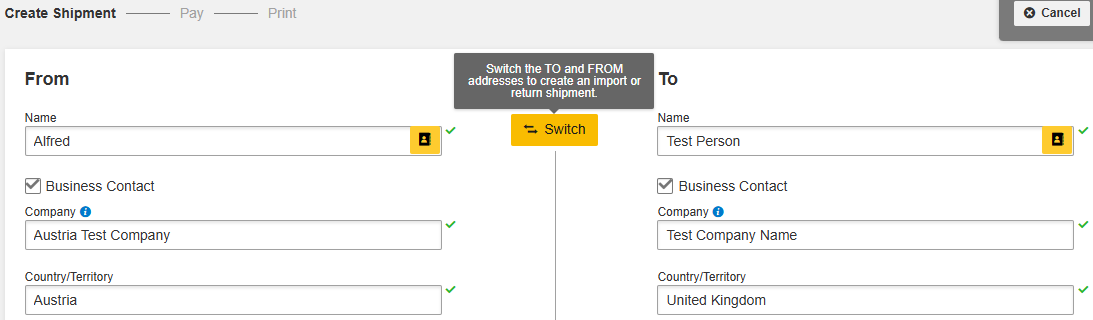
Enter the Shipper Address in the To section on the right
Your address will already be on the left in the From section
Click the Switch button and the addresses will switch places
Complete the subsequent sections as you would for an export shipment
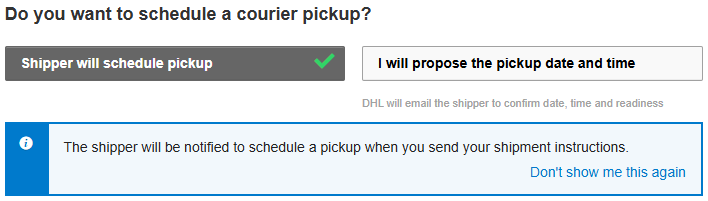
Do you want to schedule a courier pickup?
There are two options – I will propose the pickup date and time or Shipper will schedule pickup
Option 1:
I will propose the pickup date and time
This option assumes you have been in contact with the shipper and you have discussed when the shipment is ready for collection.
Depending on the time difference and location of the pickup, it may need to be scheduled for the next working day.
The Shipper will need to confirm the pickup via an e-mail before it will take place.
Enter the required information

Shipment Cost Summary
Check everything is as expected and click Accept and Continue
Send Documents to Shipper
Select Send Documents at the bottom of the page
Enter the e-mail address of the shipper so the labels can be e-mailed to them
What the shipper will see
The shipper will receive an e-mail from noreply@dhl.com with the Subject: Immediate Action Required: Confirm DHL Express Shipment Pickup
The labels will be attached which they will need to print.
The Shipper must click on the Confirm, modify or cancel pickup button. If this is not done, the pickup will be delayed.
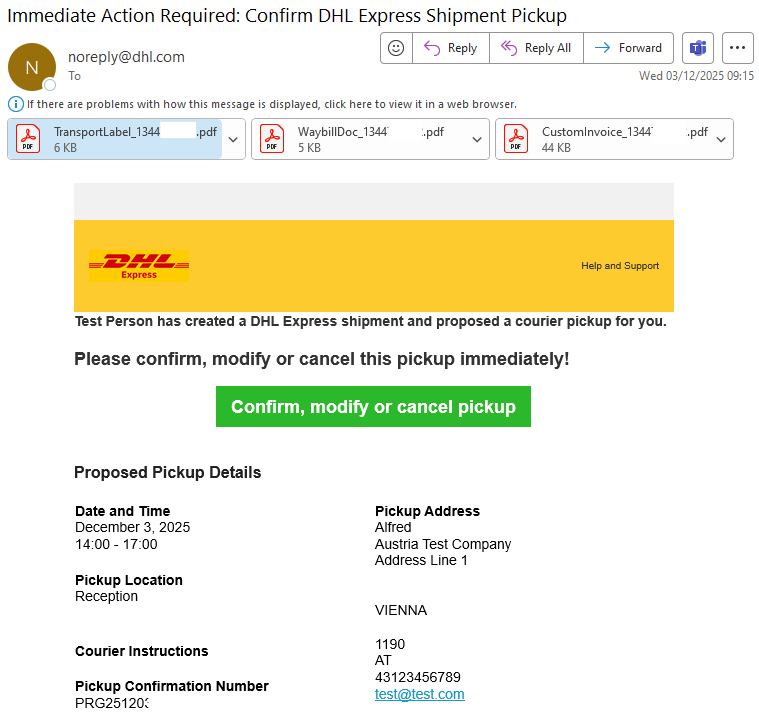
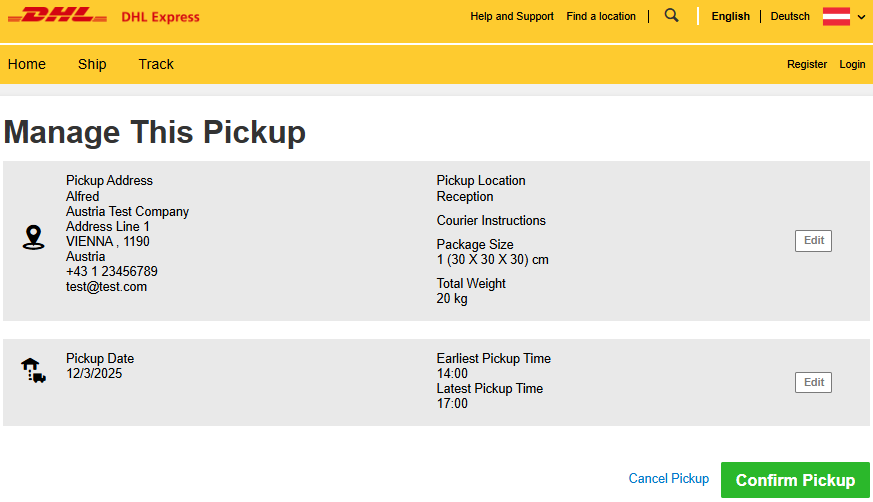
The Shipper will see the page below when they click on the Confirm, modify or cancel pickup button.
Here, they can Edit details and Confirm Pickup or Cancel Pickup.
Option 2:
Shipper will schedule pickup
Selecting Shipper will schedule pickup means the shipper will receive an e-mail so they can arrange the pickup themselves if they wish.
Shipment Cost Summary
Check everything is as expected and click Accept and Continue
Send Documents to Shipper
Select Send Documents at the bottom of the page
Enter the e-mail address of the shipper so the labels can be e-mailed to them
What the Shipper will see
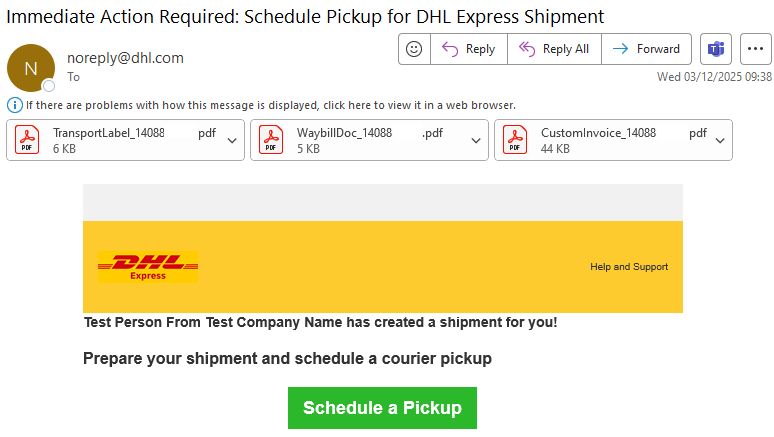
The shipper will receive an e-mail from noreply@dhl.com with the Subject: Immediate Action Required: Schedule Pickup for DHL Express Shipment
The labels will be attached which they will need to print.
The shipper now needs to arrange a pickup. They might already use DHL and have a pickup scheduled for other shipments.
If they wish, they can click on the Schedule a Pickup button in the e-mail.
When the Shipper clicks on Schedule a Pickup, they should select No > I have a DHL Waybill Number and enter the Waybill number.
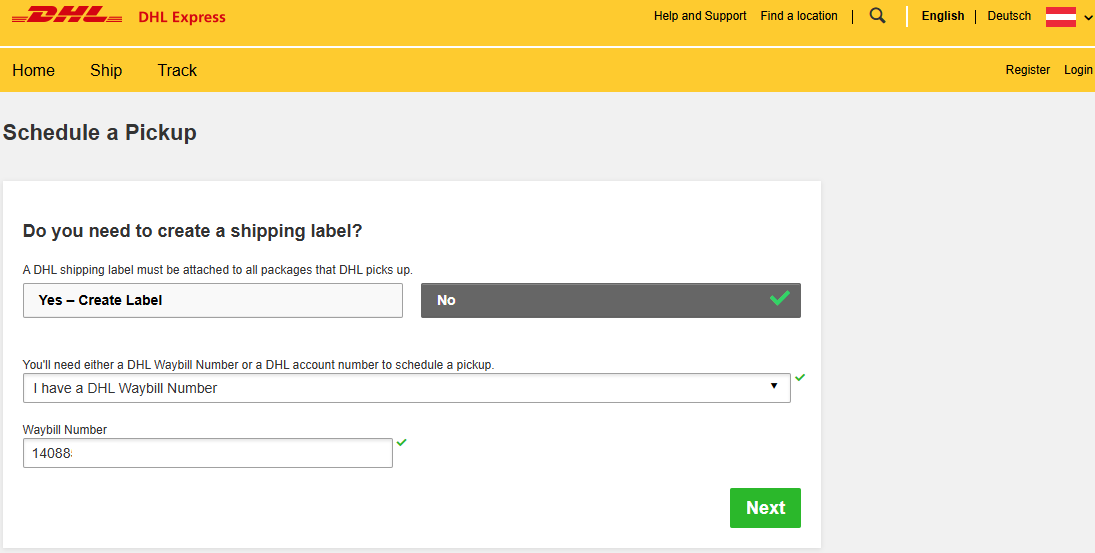
Follow the prompts to complete the pickup request.


 Share
Share
Similar Stories